



Configure the Sync Agent once — it handles uploads automatically after every session.
1. Connect your account
- Open the Sync Agent
- Click Connect to MyLMU
- Your browser opens the MyLMU sign-in page
- Sign in with your account
- You are redirected back to the app via the
mylmu-sync-agent://protocol - Status should show Connected
Prerequisites
- You must be signed up and have completed onboarding
- Your Driver Name must be set in Settings — required for session matching
If onboarding is incomplete, you will be prompted to finish it before connecting.
Reconnecting
Sign out and reconnect if:
- Status shows disconnected or token expired
- You upgraded to Pro and need telemetry folder access
- Uploads fail with authentication errors
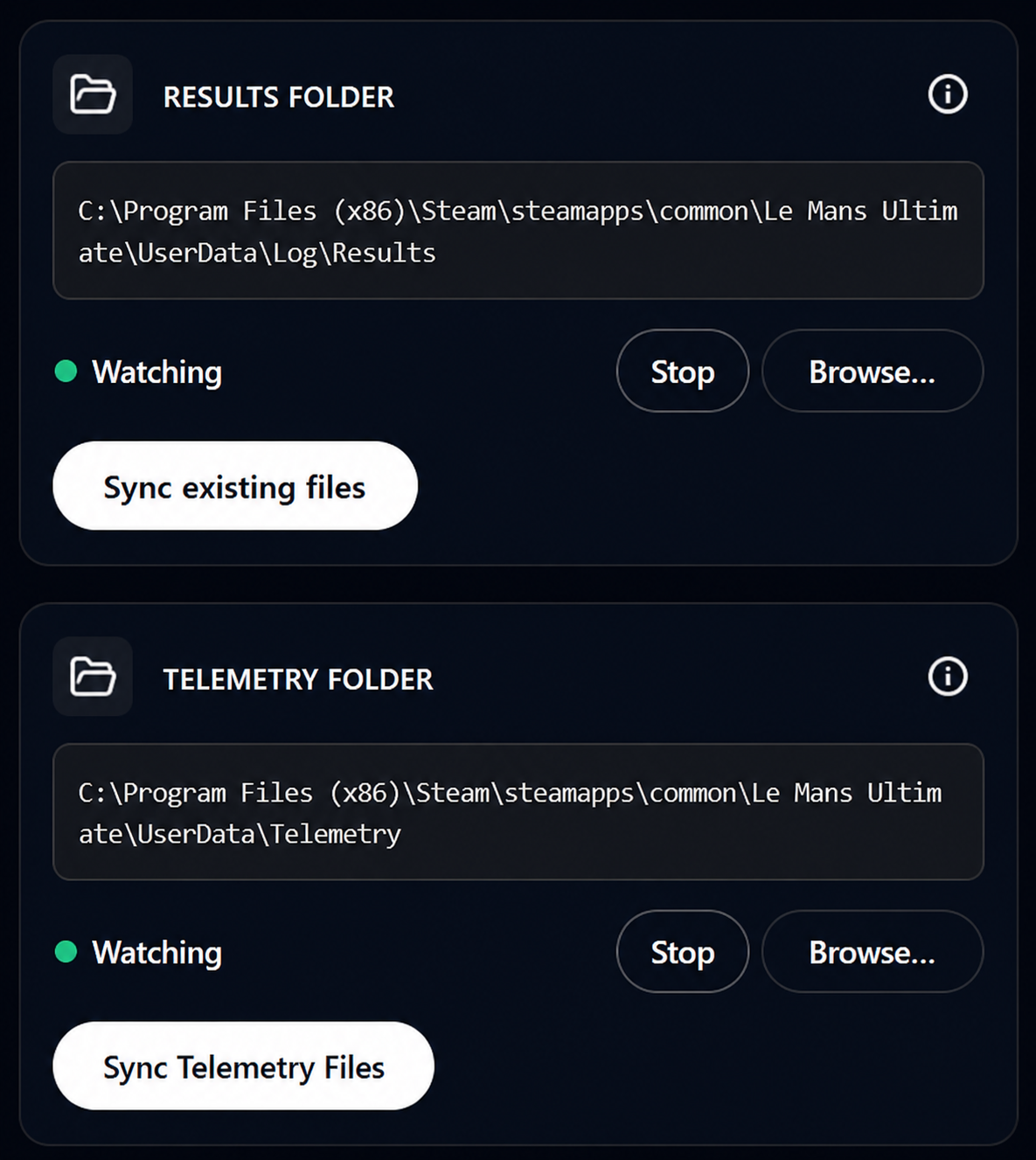
2. Select the Results folder
- Click Select Folder to Monitor (Results)
- Navigate to your LMU Results folder
- Confirm the selection
- The app displays the selected path
Common paths
Windows:
C:\Program Files (x86)\Steam\steamapps\common\Le Mans Ultimate\UserData\Log\Results
Linux (Proton):
~/.steam/steamapps/compatdata/2397010/pfx/drive_c/users/steamuser/AppData/Local/LeMansUltimate/UserData/Log/Results
Paths vary if Steam is on a different drive or library. See Folder paths for more options.
It is normal if the folder appears empty when browsing from the app — LMU may not have written files yet.
3. Select the Telemetry folder (Pro)
If you have a Pro subscription:
- Configure the Telemetry folder separately
- Navigate to:
Le Mans Ultimate/UserData/Telemetry/
- Confirm the selection
See Telemetry Sync for Pro requirements and recording setup.
4. Sync existing files (optional)
If you already have a backlog of result or telemetry files:
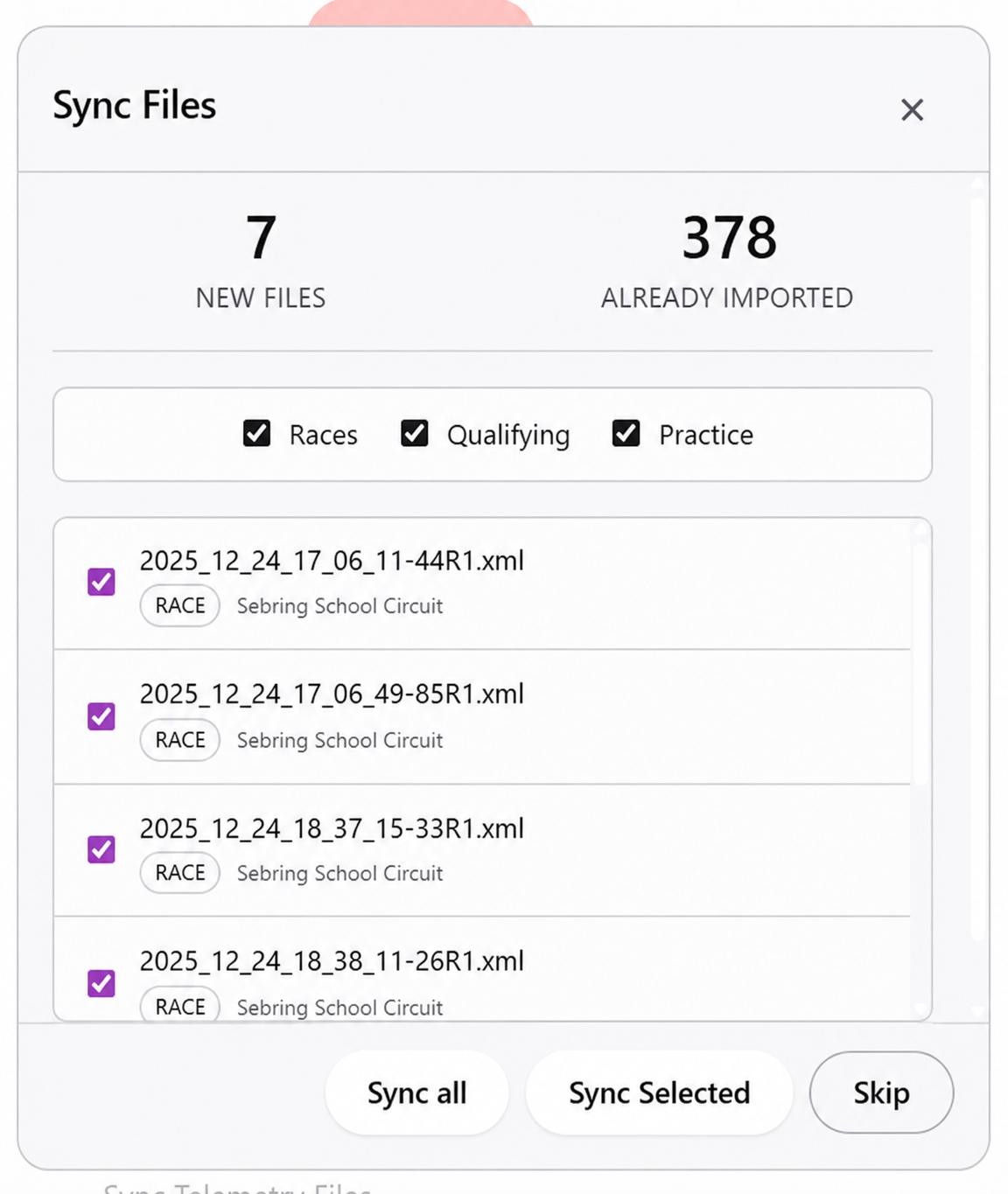
- Click Sync Existing Files
- Review the list of new (not yet uploaded) files
- Choose Sync All or select specific files
- Wait for upload to complete — check the Activity Log
This is the fastest way to populate your session history or telemetry library from past sessions.
5. Configure auto-start
- Enable Start with Windows/Linux in settings
- The app launches on boot and begins monitoring immediately
- Click Minimize to Tray — the app keeps running in the background
Verify it works
- Finish a session in Le Mans Ultimate
- Check the Sync Agent Activity Log — you should see the file detected and uploaded
- Open Dashboard → Sessions (or Telemetry) — the new entry should appear