

MyLMU Logo
Documentation
Sign inGet Started
Sessions SyncSession Upload Flow
Getting Started
Product Overview
MyLMU App
MyLMU Telemetry
MyLMU Coach (AI)
MyLMU Sync Agent
Sessions
Getting Started
Session History
Session Details
Import
Sync Agent
Analytics
Milestones
MyLMU Telemetry
Getting Started
File Library
Telemetry Viewer
Leaderboard
Teams
Plans & Limits
AI Coach
Troubleshooting
MyLMU Sync Agent
Getting Started
Sessions Sync
Results Folder PathsSession Upload Flow
Telemetry Sync
Daily Usage
Troubleshooting
Privacy & Security
MyLMU Coach (AI)
Getting Started
Coaching Modes
Coach Features
Troubleshooting
Privacy & Terms
Teams
Getting Started
Team Dashboard
Sharing with Your Team
Discord & Alerts
Team Calendar
Profile
Plans & Limits
Rankings
Getting Started
Skill & Discipline
Placement & Tiers
Community Leaderboard
Driver Profiles
Sessions & Imports
Notifications
Plans & Limits
Troubleshooting
Community
Getting Started
Activity
Leaderboards
Friends
Friend Groups
Lap Records
Track & Car Stats
Weekly Meta
Overall Community Stats
Feature Requests
Privacy
Troubleshooting
Misc
Opening Settings
Account & Data Lifecycle
Profile
Notifications
Appearance
Feedback
Using the Documentation
DocsMyLMU Sync AgentSessions SyncSession Upload Flow

Session Upload Flow

How the MyLMU Sync Agent detects, validates, and uploads session result XML files.

Last updated July 15, 2026

Summarize this page with AI

How the Sync Agent detects, validates, and uploads session result XML files.

Detection
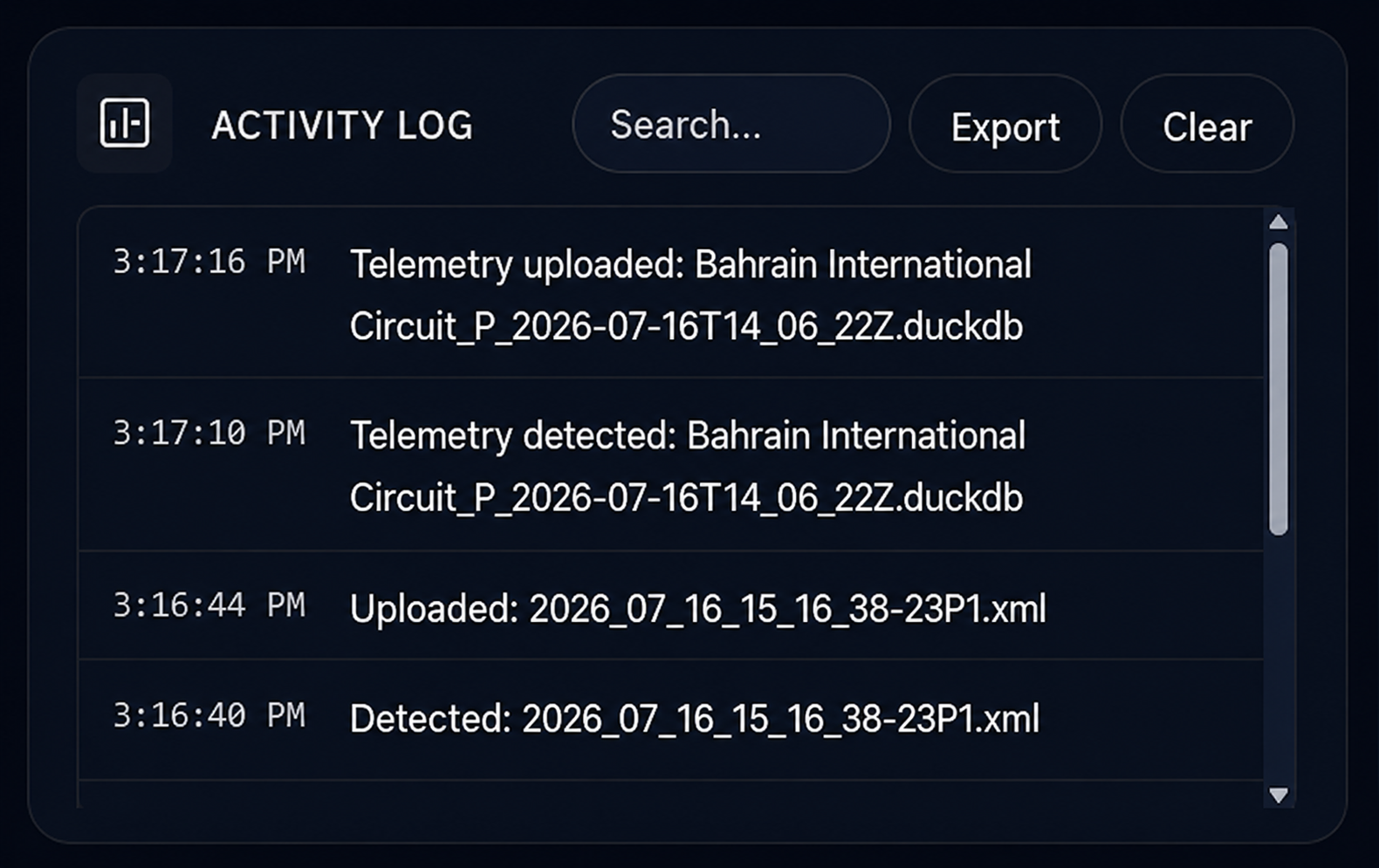
Activity Log — file detected and upload progress
  1. You finish a session in Le Mans Ultimate
  2. LMU writes a new .xml file to the Results folder
  3. The Sync Agent detects the new file via folder watching
  4. The file is queued for upload

The Activity Log shows detection timestamps and file names.

Upload process

StepWhat happens
ValidateChecks file extension, size (max 50 MB), and XML structure
Driver matchMatches driver name in XML to your Settings profile
Duplicate checkSkips sessions already in your history
UploadSends file securely to MyLMU servers
ParseExtracts standings, laps, and metadata
StoreAdds session to your history

Skipped files are logged in the Activity Log with a reason (duplicate, no matching driver, invalid format).

Driver name matching

Your Driver Name in Settings must exactly match the name in the XML file (case-sensitive). Files with no matching driver are skipped.

If you changed your in-game name, temporarily update Settings to match older XML files. See Driver matching.

Duplicate detection

A file is skipped as a duplicate when an existing session matches on track, car, session type, date, and finish position — same rules as manual import.

Sync existing files

Use Sync Existing Files to upload your backlog:

  1. The agent scans the Results folder
  2. Compares against already-imported sessions
  3. Lists only new files
  4. Uploads selected or all files in batches (up to 500 per batch)

Rate limits

The Sync Agent uses generous upload rate limits designed for background syncing. If you hit a limit, wait a moment and the agent retries automatically.

Notifications

You may receive an in-app notification when session imports complete. Check Dashboard → Home for recent activity.

Related

  • Folder paths
  • Troubleshooting: Uploads

Was this page helpful?

PreviousResults Folder PathsNextTelemetry Sync

On this page

  • Detection
  • Upload process
  • Driver name matching
  • Duplicate detection
  • Sync existing files
  • Rate limits
  • Notifications
  • Related

Was this page helpful?

Documentation

  • Getting started
  • Product overview
  • Sessions
  • MyLMU Telemetry
  • MyLMU Sync Agent
  • MyLMU Coach (AI)
  • Teams
  • Rankings
  • Community
  • Misc

Product

  • Open dashboard
  • Sync Agent
  • Contact
  • Pricing
  • Changelog
  • FAQs
  • Branding

Community

  • Instagram
  • Community forum
  • YouTube
  • X

© 2026 MyLMU

•Privacy Policy•Terms of Service•Cookie Policy