



The Setup tab shows the car setup embedded in your .duckdb recording — organized the same way as Le Mans Ultimate’s in-game setup menus.
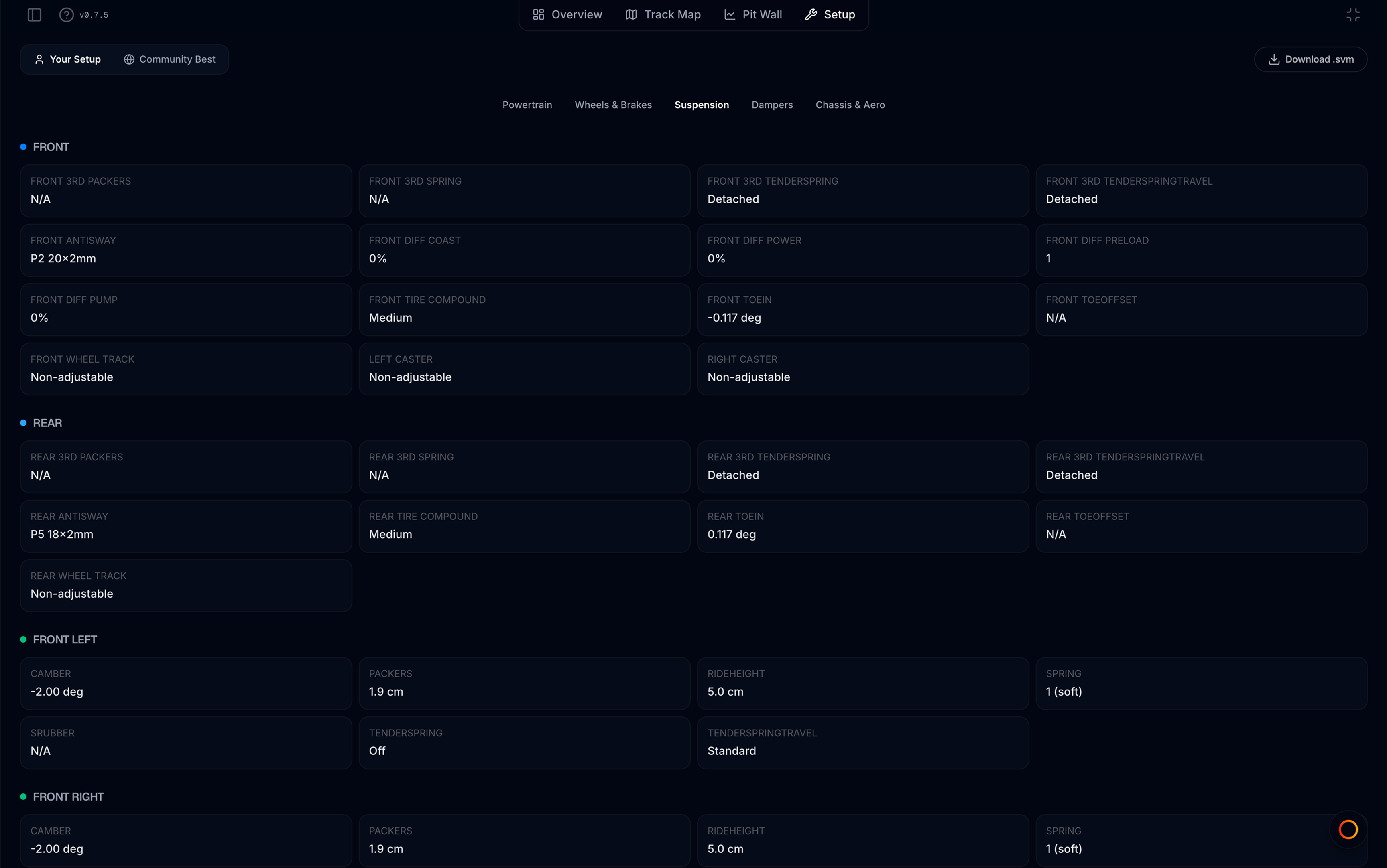
Open Setup tab
Viewer tab bar → Setup (rightmost main tab, after Pit Wall).
Two modes
| Mode | Who | What |
|---|---|---|
| Your Setup | All users | Setup from the file you opened |
| Community Best | Pro | Setups from community leaderboard laps on the same track layout |
Toggle with the segmented control at the top. Community Best is hidden on shared telemetry links (view-only).
Setup categories
Parameters are grouped into five tabs matching LMU:
- Powertrain — differential, gearbox, engine & electronics
- Wheels & Brakes — brakes, per-corner tyre pressures and compounds
- Suspension — springs, ride height, anti-roll bars (per corner or axle)
- Dampers — bump/rebound settings per corner
- Chassis & Aero — wings, bodywork, fuel, weight, steering
Within each tab, subsections (e.g. Front Left, Aero & Bodywork, Tyres — FL) group related values in a card grid.
In this section
- Viewing Setup — your recording’s setup, empty states, reading values
- Community Setups — Pro leaderboard setups, filters, compare with yours
- Export to SVM — Download .svm for Le Mans Ultimate
When setup is missing
If Your Setup shows No car setup data found in your telemetry file, the session was recorded without embedded setup metadata. This can happen with older recordings or certain session types — not a MyLMU bug.
Setup is separate from the Teams Setups library — the Setup tab reads from telemetry files, not team uploads.
Related
- Setup Stash — personal setup library with versions, compare, and LMU send-back
- AI Coach setup attachments — attach a baseline
.svmin Coach chat - Free vs Pro — Community Best requires Pro