



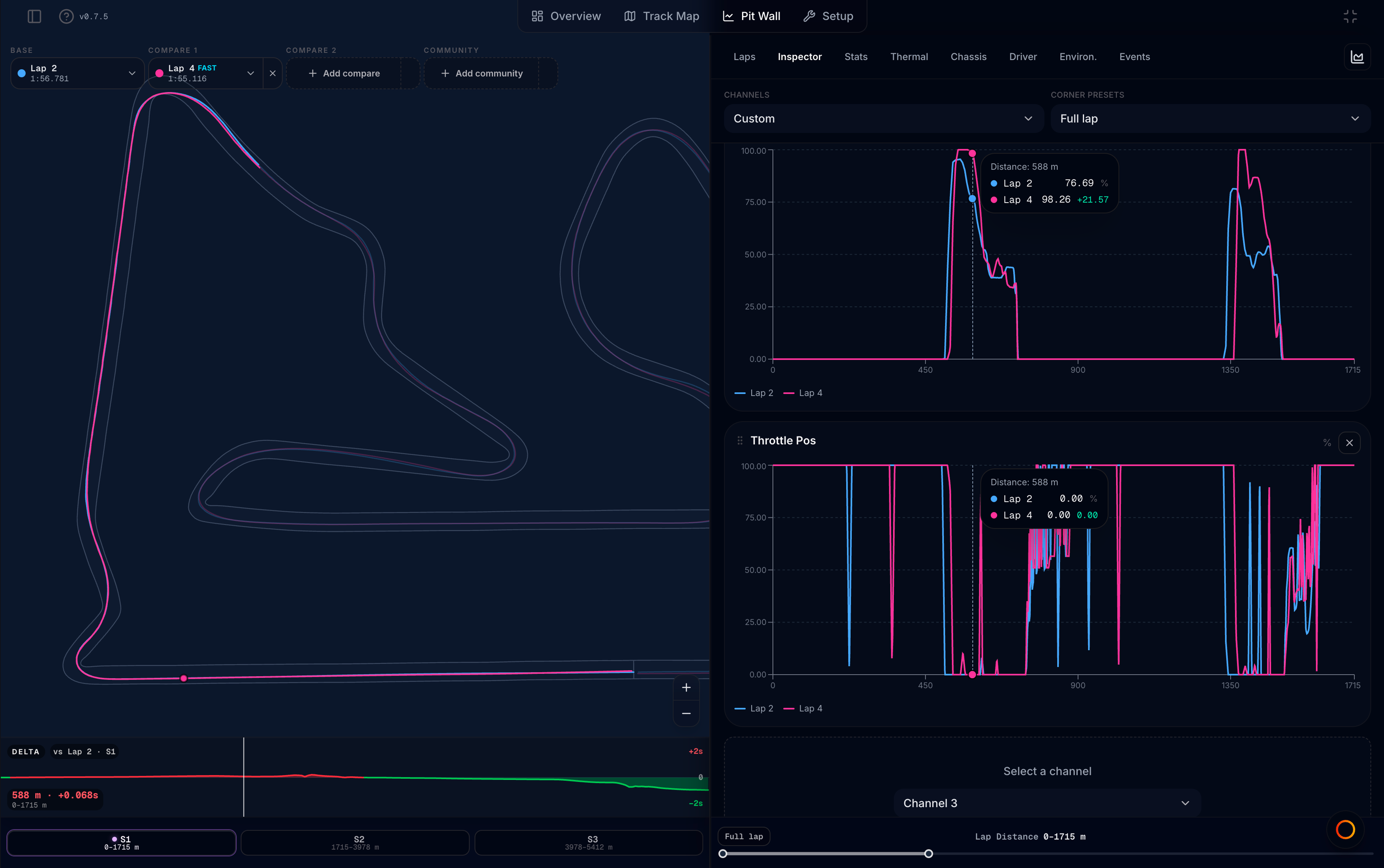
The Pit Wall tab is MyLMU’s deep analysis workspace. It pairs a track map (2D racing lines, lap pickers, sector zoom) with a charts panel for lap comparison, derived metrics, and raw channel inspection.
Open Pit Wall
Viewer tab bar → Pit Wall (between Track Map and Setup).
Layout
On desktop, Pit Wall is a split view:
| Side | What it shows |
|---|---|
| Left — track map | 2D track outline, racing lines, spatial heat (Strategy / Thermal / Driver / Chassis / Compose — legend in the strip under the map), delta strip, sector zoom, lap pickers. See Track map panel |
| Right — charts panel | View tabs and analysis charts for the active view |
- Drag the center divider to resize the charts panel (width is remembered per browser).
- Full charts (chart icon in the panel header) hides the map so charts use the full width. Lap pickers move into the Inspector toolbar. Click the map icon to restore the split.
- On narrow screens the map is hidden and charts fill the width.
Your last view, channel preset, custom channels, stint scope, Overlay selection, and panel width are restored per file when you return to Pit Wall. In Custom Inspector mode you can also save named layouts (this browser) and mark one as the default for files you have not opened yet — see Custom channels.
The view tabs
Use the tab bar at the top of the charts panel to switch views. Each tab answers a different question:
| Tab | Best for |
|---|---|
| Inspector | Raw channel traces — compare inputs, tyres, brakes, and more lap by lap (including multi-channel overlays in Custom) |
| Laps | Lap times, stint detection, and choosing which laps feed the summary views |
| Strategy | Resources + degradation + conditions — fuel/VE charts, wear vs pace, tyre life, overlay, track weather |
| Thermal | Rubber and brake heat — disc/carcass temps, pressure, surface→carcass |
| Driver | Inputs and balance — trail braking, G-G, OS/US, slip |
| Chassis | Platform and aero — ride height, damper, aero F/R, Vmax |
| Compose | Your own session-metric stacks — dual-Y overlays, starters, saved layouts |
| Events | Searchable event log from the recording |
Default when you open Pit Wall is Inspector (first tab). Use Laps then Strategy for scoped strategy analysis.
Two ways to pick laps
Most common confusion: Base/Compare and lap scope are independent. Scoping Strategy to Stint 2 does not change which laps Inspector or the map draw.
Pit Wall uses laps in two independent ways:
| Control | Where | What it affects |
|---|---|---|
| Base / Compare pickers | Track map (or Inspector toolbar in Full charts) | Inspector charts, map racing lines, delta strip |
| Lap scope | Laps tab — All, stint chips, or manual range | Strategy, Thermal, Driver, Chassis, Compose, Events |
Example: You can scope Strategy to Stint 2 while comparing Lap 8 vs Lap 12 in Inspector — the two controls do not lock together.
When a stint or manual range is active, scoped views show a banner (Analyzing: scope · Inspector & map: Base/Compare) with Clear filter.
Suggested workflow
- Inspector — set Base and Compare laps on the map for raw traces; overlay channels on one Custom card when comparing inputs
- Laps — scan the timing table and sector waterfall; pick All or a Stint if you want summary views focused on one run
- Strategy — check fuel/VE, wear cliff, and conditions for that scope (optionally overlay another stint; use View presets to focus)
- Thermal / Driver / Chassis — dig into heat, technique, or platform detail
- Compose — mix session metrics you care about on dual-Y charts
- Events — filter to find specific logged moments (pit signals, flags, etc.)
Lap comparison
At the bottom of the track map (or in the Inspector toolbar when Full charts is on):
- Base — primary lap for charts and map line
- Compare 1 / Compare 2 — up to two additional session laps overlaid
- Community — optional community best lap on the same track (same daily view limits as Track Map)
Out laps and the final partial lap cannot be used as compare targets. A delta strip appears when multiple laps or a community reference are loaded.
vs Track Map
| Track Map | Pit Wall |
|---|---|
| Replay-first — play, pause, ghosts on the map | Analysis-first — charts, stints, derived metrics |
| Traces panel for quick inputs | Inspector with subsystem presets and custom channels |
| Driver strip lap picker | Base / Compare pickers + stint scope on Laps |
| Segment seeker on the map | Sector buttons, distance brush on charts |
Use Track Map to watch a lap; use Pit Wall to compare trends across laps and stints.
Guides by tab
| Guide | Tab |
|---|---|
| Track map panel | Map (left panel) |
| Stint analysis | Laps |
| Strategy | Strategy |
| Thermal | Thermal |
| Chassis and driver | Chassis · Driver |
| Compose | Compose |
| Analysis presets | Strategy · Thermal · Driver · Chassis (View) |
| Inspector | Inspector |
| Custom channels | Inspector (Custom mode) |
| Events log | Events |
Related
- Track Map — replay and ghosts
- Community ghost — same community lap source on Track Map