



Community Best lets Pro subscribers open car setups from community leaderboard laps on the same track layout as the file you have open.
Requirements
- Pro subscription — Free users see an upgrade prompt titled Setup Comparison
- A telemetry file with a recognizable track layout in its metadata
- Not available on shared telemetry links (view-only)
Community setup browsing uses the same leaderboard pool as Community ghost on Track Map. Opening a setup for the first time may download that driver’s telemetry file to extract setup data — this can count toward your daily community lap view limit on Free (Pro is unlimited).
Open Community Best
- Open your telemetry file → Setup tab
- Click Community Best (globe icon) in the mode toggle
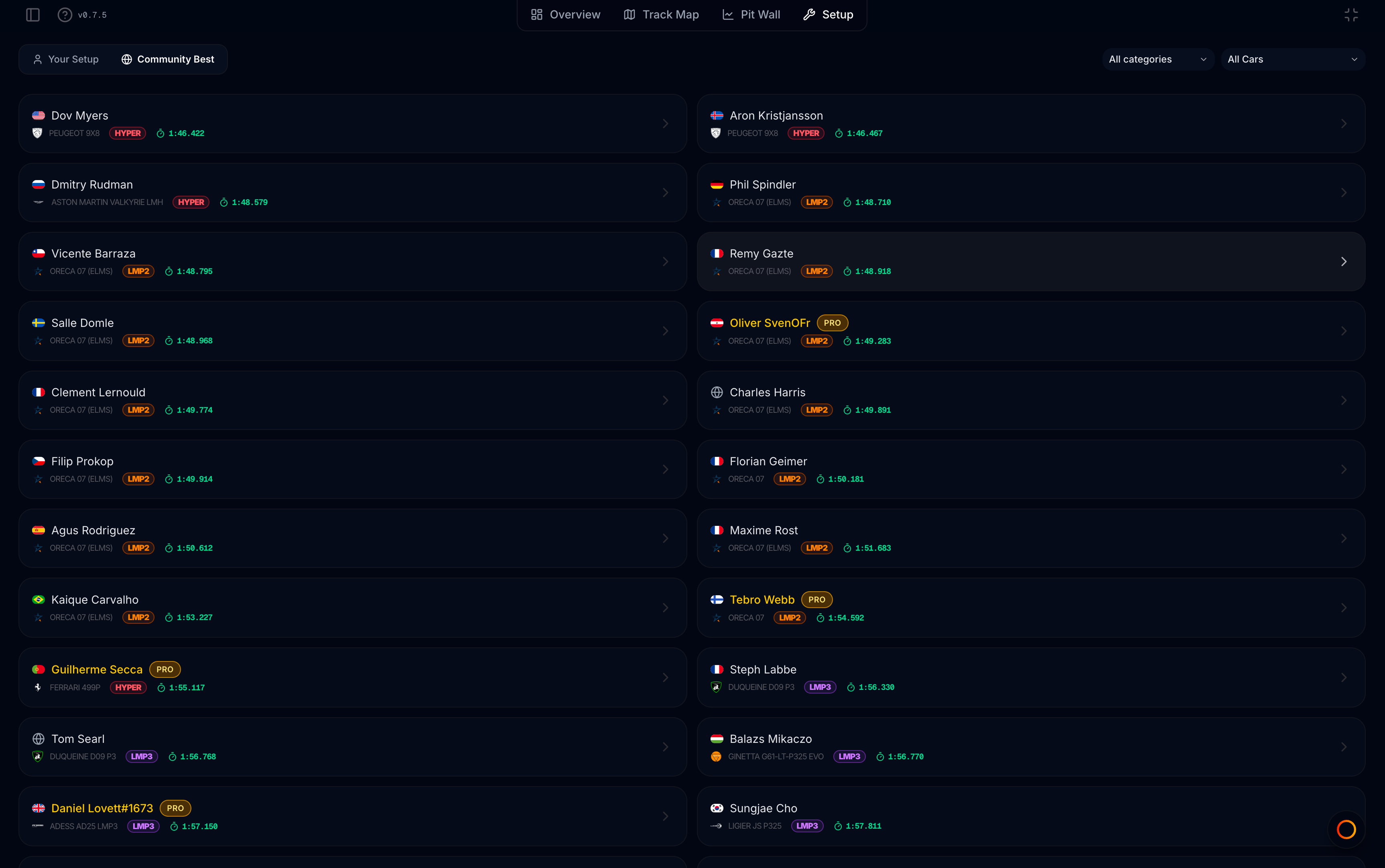
- Wait for the leaderboard list to load for your track layout
Browse the list
Each card shows:
- Driver name and country flag (Pro members may show a gold name/badge)
- Car with brand icon and class badge
- Best lap time on this layout
Filters
Narrow the list with the header dropdowns:
| Filter | Options |
|---|---|
| All categories | Car class (Hypercar, LMP2, GTE, etc.) |
| All Cars | Specific car model |
The track is fixed to your open file’s layout — there is no separate track filter.
Empty list
No community setups found for this track layout.
No public leaderboard laps with setup data exist for this layout yet, or filters excluded every entry.
Open a setup
Click a card to open the full parameter view. If setup was not cached, a spinner appears while MyLMU reads the driver’s telemetry file.
The detail header shows:
- Driver, lap time, and car
- Download .svm — export this setup for LMU
- Compare with Mine — toggle side-by-side diff against Your Setup
Use Back to List to return to the grid without changing mode.
Compare with Mine
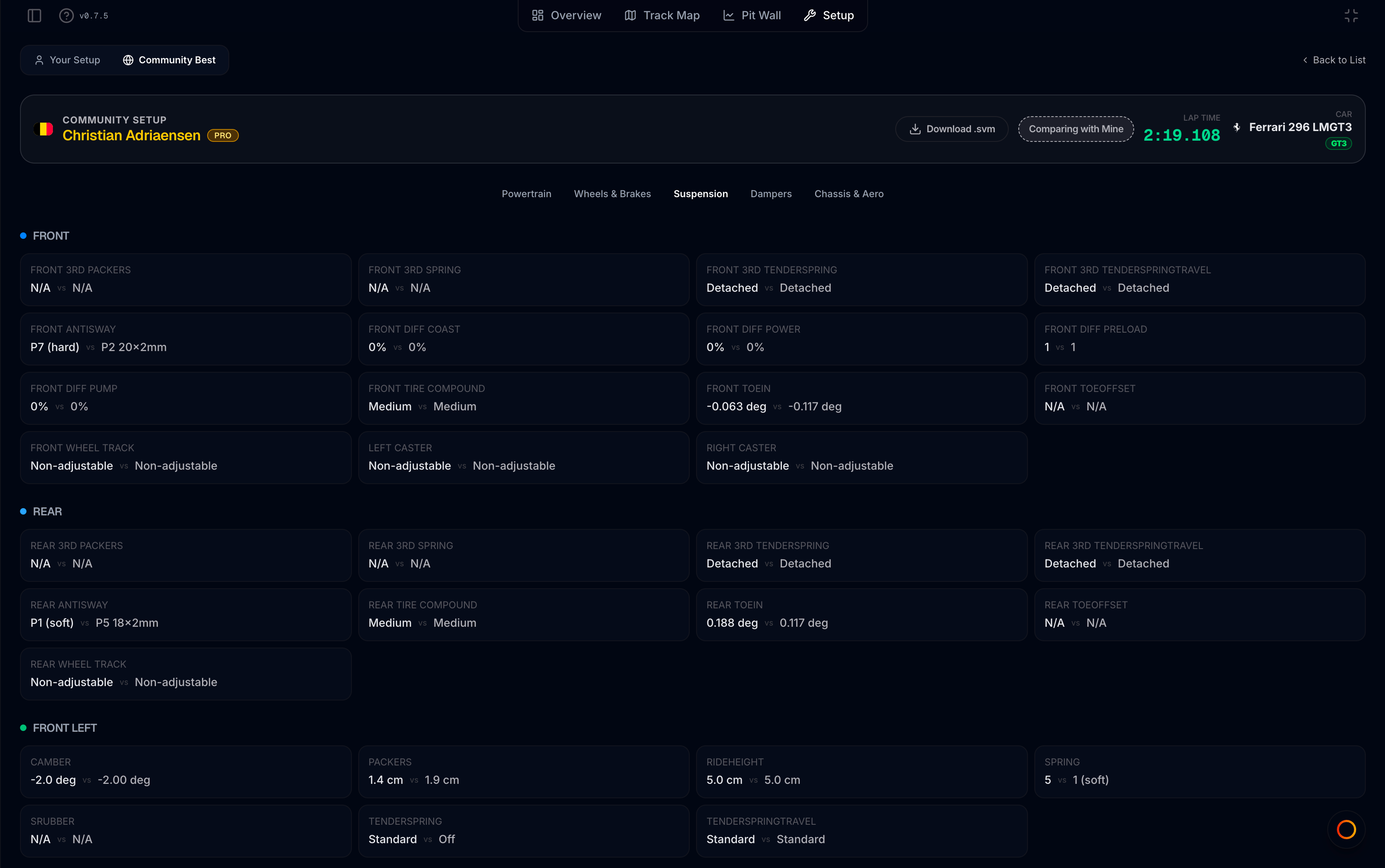
Enable Compare with Mine to overlay your recording’s values on each card:
- Primary value — community driver’s setting
- vs highlighted value — your setting from the same parameter key
Only keys present in both setups show a comparison. Use this to spot wing, damper, or pressure differences against a fast lap. Comparison requires that Your Setup has data in the same file.
Using community setups
Community setups are reference starting points, not guaranteed optimal for your driving style or conditions:
- Tyre pressures and fuel loads are session-specific
- Weather and track evolution change grip
- Always validate in practice before racing
Export with Download .svm and load in LMU, or study differences in-app before changing your own baseline.