



Custom channels let you build a personal chart stack in the Pit Wall Inspector without sticking to a single channel preset. Everything still uses the same lap distance axis, hover sync, and Base / Compare overlay as preset charts.
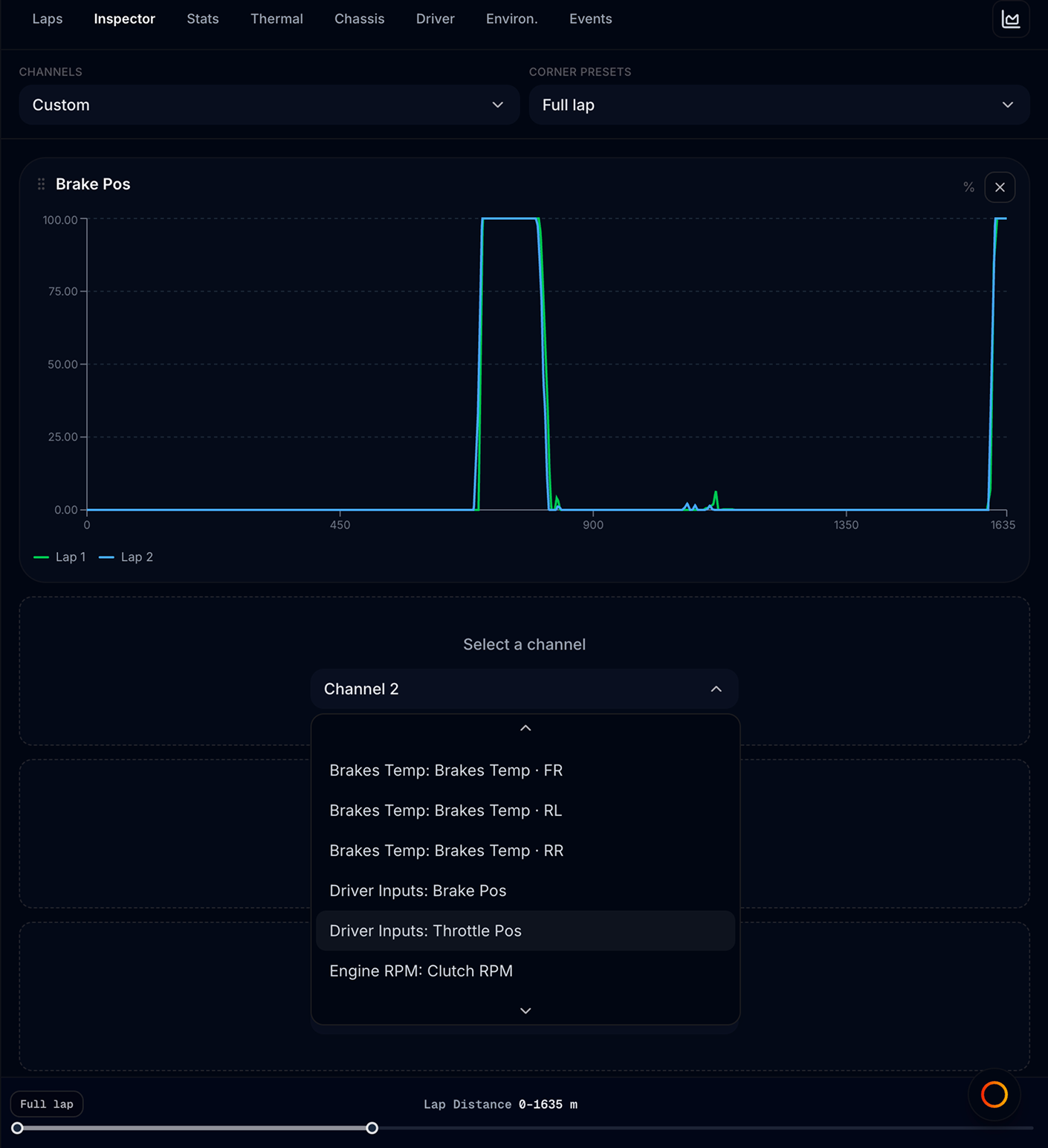
Custom mode lives inside Inspector — there is no separate tab. It is the default Channels view when you open Inspector for a file for the first time, with Brake Pos already in the first slot (unless you set a default named layout).
Enable Custom mode
- Open Pit Wall → Inspector — Custom is selected by default (with Brake Pos charted)
- Or open the Channels dropdown and select Custom (first option at the top)
- Up to five chart cards are available
There is no formula editor. You pick raw channels from the recording; MyLMU plots them against lap distance with the same multi-lap overlay as preset charts.
To leave Custom mode, pick any preset from the same dropdown (e.g. Inputs: Throttle Pos).
Add channels
Each empty slot shows Select a channel. Open the dropdown and type to search — channels are grouped (Inputs, Tyres, Brakes, Suspension, etc.) with labels like Tyres: Tyre Pressure FL.
| Action | Result |
|---|---|
| Pick a channel | Fills the slot and renders the chart |
| Type in the search box | Filters the channel list |
| Pick empty / clear option | Removes the channel from that slot |
| Remove on chart card | Same as clear — frees the slot |
| Pick a channel already used elsewhere | Moves it to the new slot (duplicates prevented) |
Some channels are omitted from the custom picker but remain available through channel presets — usually variants used elsewhere in the app.
Overlay channels on one chart
Each Custom card can hold up to three channels on the same distance plot:
- Open a filled card and use Add overlay… under the title
- Pick a second (or third) channel from the searchable list
- Remove an overlay with the chip’s × (the last channel removes the card)
Scaling
- Channels that share a unit (e.g. Brake Pos and Throttle Pos in %) use one Y-axis
- Different units (e.g. % and km/h) get a dual Y-axis (left / right)
- You cannot add a third unit group on one card — use a separate card instead
Channel color identifies the metric; dashed lines are Compare laps. Community best-lap overlay is hidden on multi-channel cards.
Named layouts
Next to Channels, the Layout control lets you save Custom stacks (including overlays) and reuse them across files in this browser:
| Action | Result |
|---|---|
| Save | Updates the active named layout with the current slots and chart order |
| Save as | Creates a new named layout (up to 10) |
| Star | Marks that layout as the default for files you have not customized yet |
| Trash | Deletes the named layout |
| Layout dropdown | Switches to another saved stack immediately |
When you open a file:
- Pit Wall restores that file’s last Custom channels if you already visited it
- Otherwise it applies your default named layout (if any)
- Otherwise it starts with Brake Pos
Named layouts stay on this device/browser — they are not synced to other computers.
Work with custom charts
Custom charts support the full Inspector toolkit:
| Tool | How to use |
|---|---|
| Base / Compare laps | Set on track map (or Inspector toolbar in Full charts). Up to three session lines + dashed community lap. |
| Corner presets | Zoom all custom charts to one corner’s distance range |
| Distance brush | Drag the footer strip to focus a distance window on every chart |
| Drag reorder | Grip handle on each card — stack order is saved per file |
| Hover sync | Cursor on any chart updates siblings and map position dots |
Your custom channel list and chart order are remembered per file when you return. Use a named layout (and optionally mark it default) so new files open with your preferred stack.
Preset vs Custom
| Preset | Custom | |
|---|---|---|
| Channels | Fixed set per subsystem (e.g. all tyre corners) | Any five you choose |
| Count | Up to 16 charts | Up to 5 charts |
| Switching | Channels dropdown | Same dropdown — pick Custom |
| Best for | Standard diagnosis by subsystem | Ad-hoc comparisons (e.g. fuel + speed) |
Example workflows
| Question | Custom stack |
|---|---|
| Where am I lifting before braking? | Throttle Pos, Brake Pos, Speed |
| Is one tyre overheating? | Tyre Temp FL/FR/RL/RR (pick three slots) + Lap Time from another view |
| Fuel save vs pace | Fuel Remaining, Throttle Pos, Speed |
| Compare brake and steering on one corner | Set corner preset → Brake Pos, Steering, Speed |
After building a useful stack, Save as a named layout and star it as default so the next file opens ready to analyze.
Export
Pit Wall charts do not have a built-in PNG or CSV export. For raw data export, use Overview → Data Export (Pro). For quick trace snapshots on Track Map, see Traces panel.
Related
- Inspector
- Track map panel
- Overview → Data Export — Pro CSV / JSON / MoTeC /
.duckdbexport