



The Traces panel sits on the right side of Track Map and shows synchronized channel charts during replay. Open or close it with the Traces button on the far right of the replay control bar.
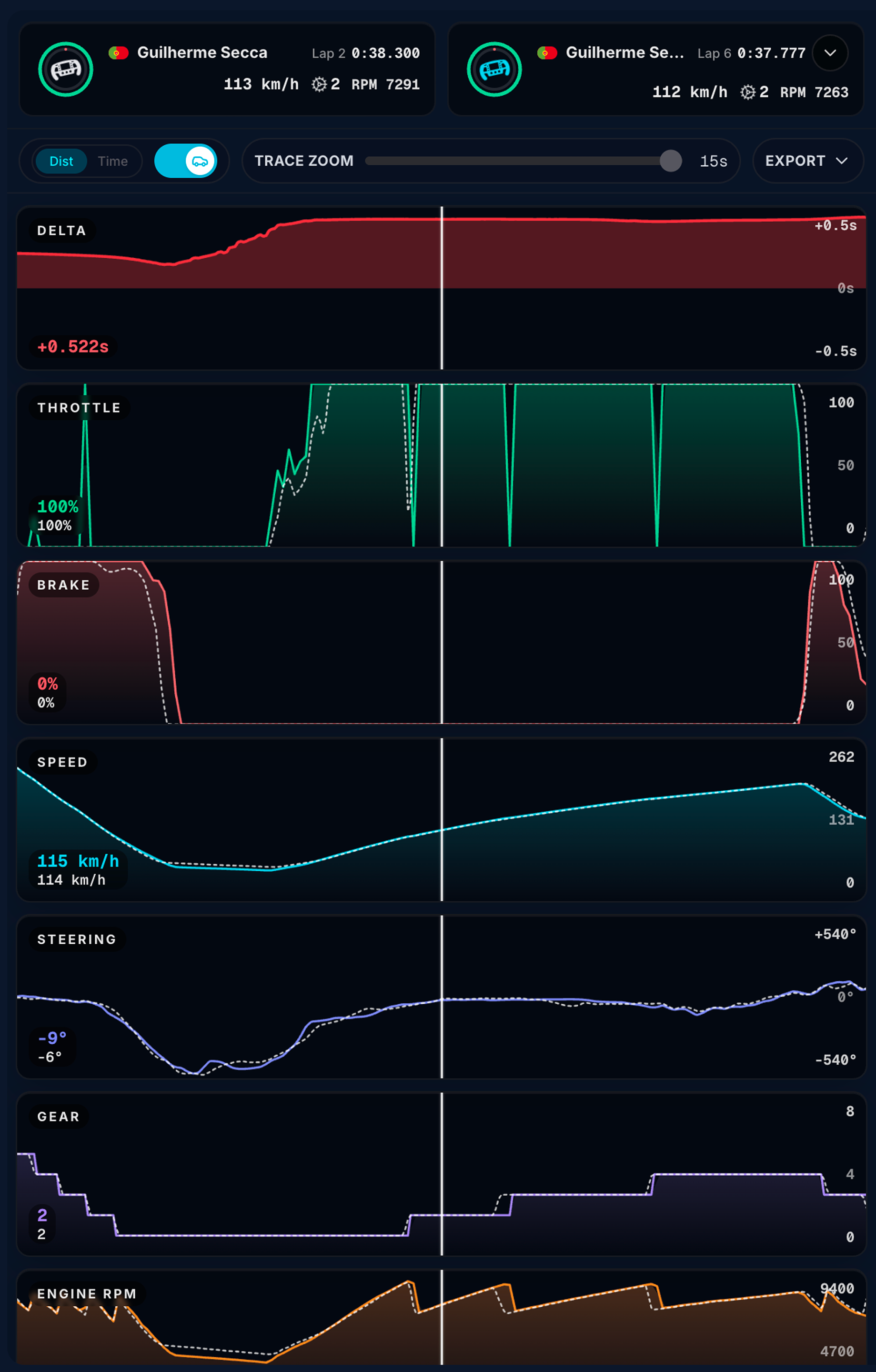
Opening Traces hides the driver strip. Lap picker, reference menu, Dist/Time, and live driver cards move to the top of this panel.
Driver cards
The top of the panel is a two-column driver card row — your lap on the left, reference on the right.
Your lap (left)
- Country flag and driver name
- Lap number and lap time at the playhead
- Steering wheel with live throttle (green ring) and brake (red ring) arcs; the wheel rotates with steering input
- Live speed, gear, and RPM
Reference (right)
When no ghost is loaded, the right card is dimmed and labeled Reference.
After you load a reference lap:
- Same layout as your card — flag, driver name, lap, lap time, wheel rings, speed, gear, RPM
- Wheel accent color matches the reference type (cyan for best lap, yellow for a picked lap, purple for external/community)
- + or chevron button on the lap row opens the reference menu
| Menu item | Action |
|---|---|
| Best lap | Use your session best as reference |
| Pick lap | Choose another lap from the same file |
| Community best | Open the community ghost picker |
| Select lap… | Pick a specific lap (when reference mode is custom) |
| Clear reference | Remove the loaded ghost |
You can also load an external ghost from Your files — the right card updates once it is active.
Toolbar
A control row sits below the driver cards and above the channel charts.
| Control | When shown | What it does |
|---|---|---|
| Dist / Time | Reference loaded | Dist — compare at the same point on track (default). Time — compare at the same moment in the lap |
| Car toggle | Reference loaded | Show or hide the reference car on the 2D/3D map |
| Trace zoom | Always | Slider labeled Trace zoom — sets how many seconds of data are visible in the charts (e.g. 15s). Drag left for a tighter window, right for more context |
| Export | Desktop | Opens the export menu — see below |
The same Dist/Time and car toggle also appear in the driver strip center pillar when the driver strip is visible.
Segment mini map (desktop)
When the traces panel is open on desktop, a compact segment mini map sits beside the traces stack. It shows your position and the active segment but does not accept clicks — use the segment seeker above the driver strip area to jump between segments.
Channels
Default traces include:
| Channel | What it shows |
|---|---|
| Delta | Time gain/loss vs reference lap — only when a ghost is loaded |
| Throttle / Brake | Input percentages |
| Speed | Vehicle speed |
| Steering | Wheel angle |
| Gears / RPM | Gear position and engine speed |
| Fuel | Remaining fuel |
| Virtual Energy | Hybrid energy level when the recording includes it (e.g. Hypercar) |
Each chart shows your value at the playhead and a reference overlay when a ghost is active. Scrubbing the replay timeline or playing replay updates all charts together.
Reading the Delta trace
| Shape | Meaning |
|---|---|
| Line above zero | You are ahead of reference (faster) at that distance |
| Line below zero | You are behind reference (slower) |
| Steep drop | Losing time quickly — seek that section on the map |
After spotting a spike, pause replay and use the segment seeker to step the corner.
Export (Pro)
The Export menu is a Pro feature. Free users see an upgrade prompt when opening it.
| Format | What it does |
|---|---|
| CSV | Download the visible trace window as interpolated samples |
| PNG | Save a snapshot image of the traces panel |
| Copy | Copy playhead channel values to the clipboard (tab-separated) |
Suggested workflow
- Open Traces from the replay bar
- Load Best lap or Community best from the reference card menu
- Play the lap and watch Delta for where time is lost
- Narrow Trace zoom around a problem sector
- Cross-check Throttle / Brake against comparison markers on 2D
Related
- Driver strip — same controls when Traces is closed
- Replay control bar — open or close this panel
- Playback shortcuts
- Overview Data Export — full-session CSV / JSON / MoTeC /
.duckdb - Free vs Pro limits
- Community ghost