



The 2D map draws your racing line from GPS telemetry on a top-down track canvas. It is the default view mode and the best choice for studying racing lines, sector timing, and comparison markers.
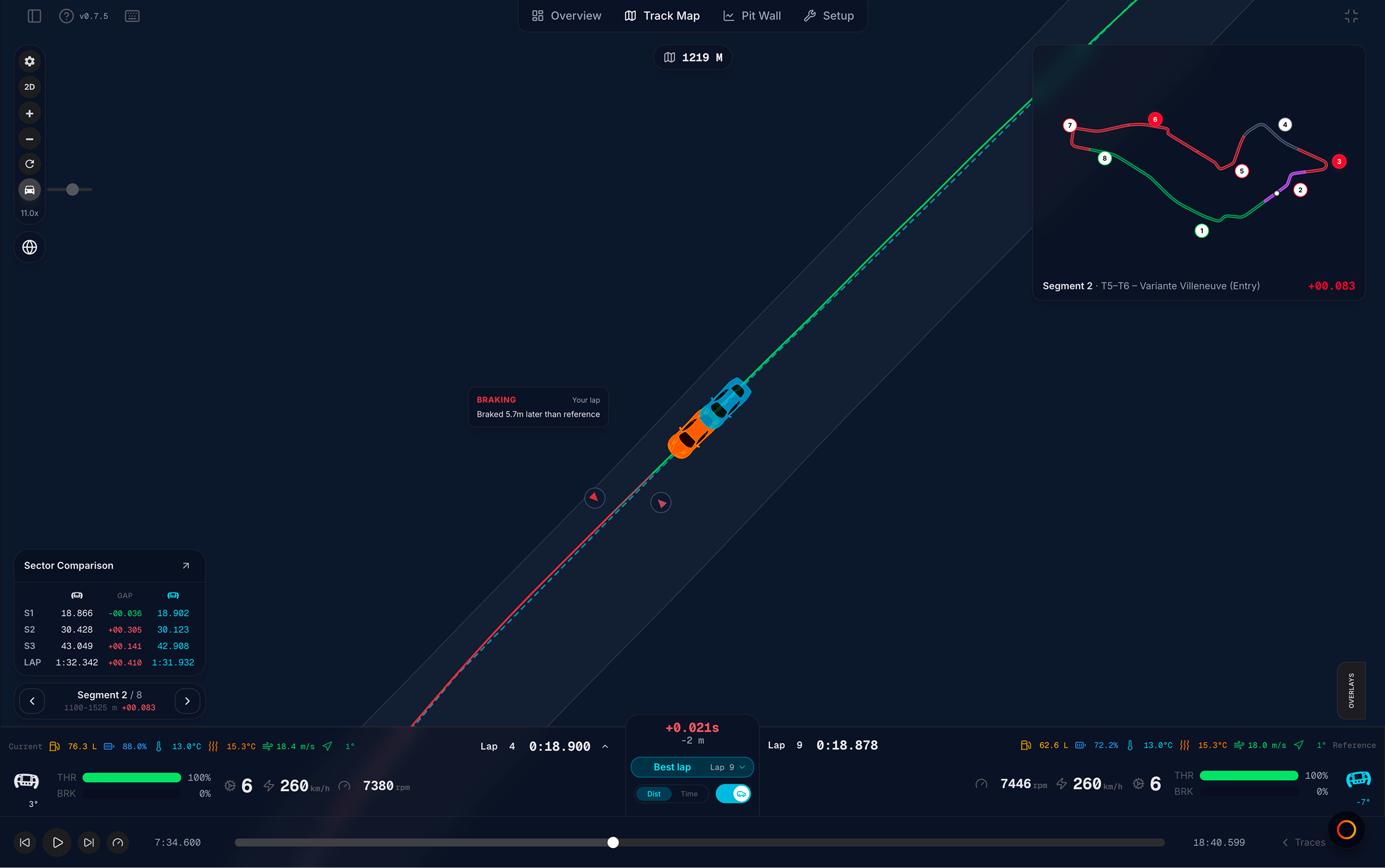
What you see
| Element | What it does |
|---|---|
| Track outline | Circuit shape from GPS — grey fill with track edges |
| Racing line | Your lap path; colored by Line Style (Inputs, Solid, Speed/temps, or Fuel use / VE use / Wear rate hotspots) |
| Ghost line | Reference lap path when a ghost is loaded — dashed style for community laps |
| Live position dot | White dot on your line during replay |
| Sector labels | S1, S2, S3 at timing traps — hidden while Follow car is on |
| Comparison markers | BRAKING, MIN SPEED, FULL THROTTLE pairs vs reference — 2D only |
| PIT LIMITER badge | Appears on map when pit limiter is active and speed is low |
Live throttle, brake, steering, speed, and gear appear in the driver strip and traces driver cards — not as an overlay on the 2D map itself.
Map toolbar (top-left)
| Control | Action |
|---|---|
| Gear (Alignment Controls) | Open display preferences |
| 2D / 3D | Switch to 3D replay — also M |
| + / − | Zoom in or out |
| Reset View | Fit the map back to a comfortable zoom and pan |
| Follow car | Lock the viewport on your car; drag the map to orbit around it |
| Globe | Open Community Best Laps modal — see Community ghost |
Pan and zoom vs Follow car
| Mode | Pan | Zoom |
|---|---|---|
| Follow car off | Click + drag to pan | Scroll wheel or pinch |
| Follow car on | Drag to orbit around the car | + / − or scroll adjusts follow zoom |
Turn Follow car off when you want a fixed overview of the full circuit. Turn it on when you want the map to track your car through replay.
Racing line colors
Line Style in display preferences controls how the racing line is colored. On the 2D map:
| Mode | Appearance |
|---|---|
| Inputs (default) | Green throttle, red brake, slate coast / lift |
| Solid | Single color (pick with the color picker) |
| Speed / Fuel use / VE use | Speed uses absolute level; Fuel and VE show where they are used along the lap, colored relative to that lap (green = lower rate, red = higher) |
| Wear rate / Brakes / Tyres | Wear rate shows where tyre life is lost (relative to the lap); Brakes/Tyres are absolute temps — choose Avg, FL, FR, RL, or RR |
A small legend under Line Style shows the current lap’s min and max when a heatmap mode is active.
On 3D, only Inputs and Solid apply; heatmap presets stay available when you switch back to 2D. See Map display preferences.
Ghost and comparison visuals
When a reference lap is loaded:
- The ghost racing line appears on the map (toggle visibility with the car icon in the driver strip or traces toolbar)
- Comparison markers highlight brake, minimum speed, and full-throttle points per corner
- Sector comparison and segment tools show time deltas
Toggle marker visibility from the gear panel: Comparison markers.
When to use 2D
| Prefer 2D when… | Consider 3D when… |
|---|---|
| Studying racing lines and markers | You want ghost car models in scene |
| Hardware is slower or file is large | You want corner preset cameras |
| You need the lightest map mode | You are recording cinematic footage |
2D mode is significantly lighter than 3D — prefer it on slower hardware or very large files. See 3D view issues.
Suggested workflow
- Load a reference (Best lap or Community best) from the driver strip
- Scrub to a corner on the 2D map or use the segment mini map
- Read BRAKING and FULL THROTTLE markers — hover for distance or speed deltas
- Open Traces for the full time-series view