



The 3D Replay view renders a WebGL track model with your car and ghost vehicles synchronized to replay time. Use it when you want to see the car on track, orbit corners, or capture clean screenshots.
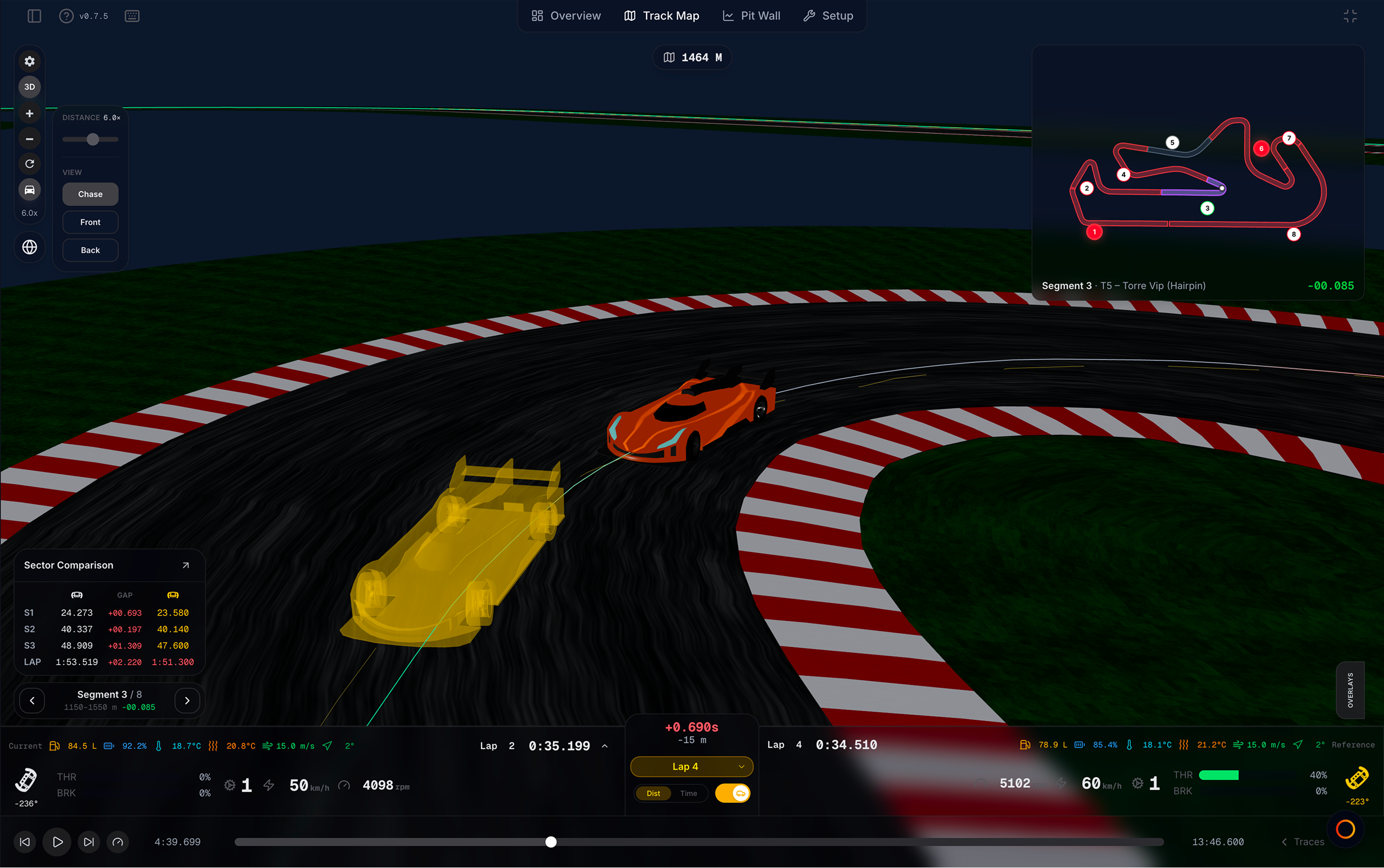
Enable 3D
Press M or click the 2D/3D toggle in the top-left toolbar.
What you see
| Element | What it does |
|---|---|
| 3D track surface | Circuit mesh aligned to your telemetry |
| Your car | Live position during replay |
| Ghost car(s) | Up to two reference cars in Custom ghost mode |
| Racing lines | Optional paths on the track — toggle in display preferences |
| Sector labels | S1/S2/S3 on the track surface during replay |
| Data HUD cards | Live inputs above cars when Data overlay is on |
| Segment mini map | Top-right when traces are closed; compact strip beside traces when open — see Segment mini map |
Follow car camera
Turn Follow car on in the toolbar for a chase-style camera. On desktop, a panel appears beside the toolbar:
| Control | Effect |
|---|---|
| Distance | How far the camera sits from the car |
| Chase | Orbit around the car (default) |
| Front | Hood / forward camera |
| Back | Rear camera looking behind |
Use Reset View to return to the default chase camera and clear any corner preset.
Turn Follow car off for free camera movement. Preset corner cameras from Overlays → Corners override follow until you pick Clear preset.
Follow-car state carries over when you switch 2D ↔ 3D.
Ghost cars in 3D
| Reference mode | Ghost cars on track |
|---|---|
| Best lap | One ghost car |
| Custom (picked lap) | One ghost via Laps overlay 1 slot; second via 2 slot |
| External / Community | One ghost car |
Toggle ghost car visibility with the car icon in the driver strip or traces toolbar. The dashed Ghost lap line on the track is separate — toggle it in display preferences.
Overlays for 3D
These launch from the Overlays tab — see Overlays and modals:
| Button | What it does |
|---|---|
| Data | Floating HUD above your car and each ghost — gear, throttle, brake, steering |
| Corners | Turn list (T1, T2, …) with preset orbit cameras per apex |
| Tyres, Brakes, etc. | Same draggable popups as 2D |
Data and Corners only appear in 3D. In cinema mode, HUD cards hide with the rest of the chrome.
Free camera controls
When Follow car is off:
| Action | Control |
|---|---|
| Fly forward / back | W / S |
| Strafe left / right | A / D |
| Move up / down | E / Q |
| Orbit / rotate | Left-click + drag |
| Pan | Right-click + drag |
| Zoom | Scroll wheel |
Cinema mode
Cinema mode is 3D only. Press ⌘ + ⇧ + U (Mac) or Ctrl + Shift + U (Windows/Linux) to hide all map chrome — toolbar, driver strip, replay bar, traces, mini map, and overlays.
What remains:
- The 3D scene and ghost cars (if visible)
- Save 3D screenshot button (top-right) — exports a PNG
Press Esc to exit cinema mode. See Fullscreen and cinema mode.
Performance
3D is graphically intensive. Files over 50 MB may stutter. Switch to 2D map if lag occurs. Close unused overlay popups on large files.
Suggested workflow
- Load a reference ghost from the driver strip
- Turn Follow car on with Chase camera for a driving replay
- Open Data overlay to see live inputs on the cars
- For a specific corner, open Corners and pick a turn — or switch to 2D for comparison markers