



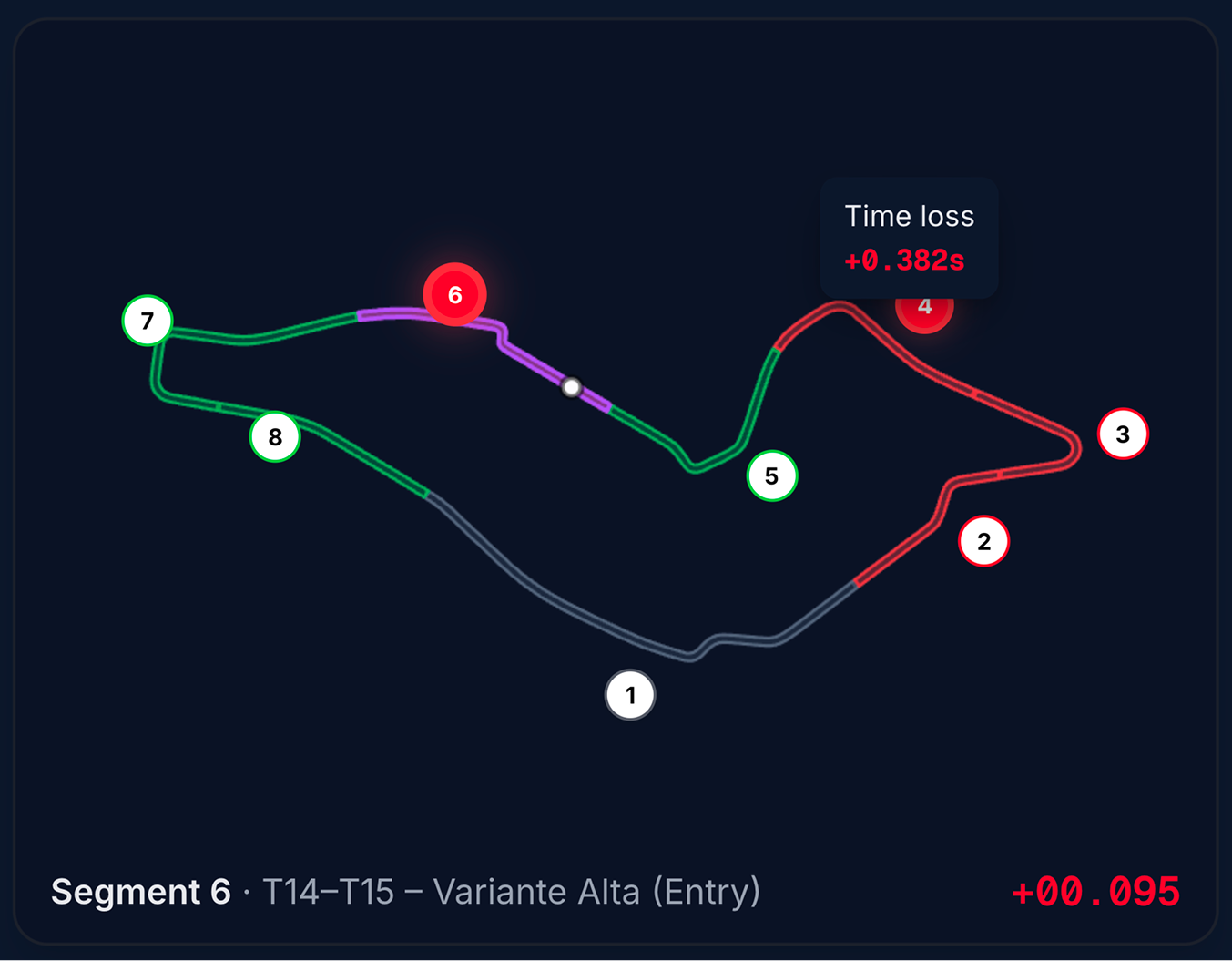
The segment mini map is a small top-down track overview on the Track Map. It shows where you are on the lap, which segment is active, and — when comparing — where you are faster or slower than the reference.
Where it appears
| Layout | Position | Interaction |
|---|---|---|
| 2D map, traces closed | Top-right (desktop) | Full — click segment markers to seek |
| 3D replay, traces closed | Top-right on the 3D view (desktop) | Full — click markers to seek |
| Traces panel open | Narrow strip beside the traces stack (desktop) | View only — position and active segment update; markers are not clickable |
Hidden on mobile widths and in cinema mode (3D mini map follows the same cinema hide rules as other map chrome).
When the traces panel is open in 3D, the in-scene mini map is replaced by the compact strip beside traces — you do not get two mini maps at once.
What you see
Always
| Element | Meaning |
|---|---|
| Track outline | Simplified left/right track edges |
| White dot | Your car’s current position during replay |
| Bottom caption | Active segment number; corner name when the track provides one (e.g. Segment 3 · T2 – Les Combes) |
With a reference lap
| Element | Meaning |
|---|---|
| Red segment tint | Time loss vs reference in that segment |
| Green segment tint | Time gain vs reference |
| Slate tint | Neutral (within a few hundredths of a second) |
| Purple highlight | The segment you are currently in |
| Numbered circles | One per segment — click to jump replay (full interactive mode only) |
| Hover tooltip | Time gain or Time loss in seconds |
| Pulsing red rings | Up to two markers on the biggest time-loss segments |
| Bottom-right delta | Formatted time difference for the active segment (matches the segment seeker) |
Without a reference, the map still shows position and the active segment highlight, but no red/green comparison coloring.
Full vs view-only mode
| Mode | When | Click markers to seek? |
|---|---|---|
| Full | Traces closed (2D or 3D) | Yes |
| View only | Traces open | No — use segment seeker ← / → instead |
Seeking from the mini map
In full mode:
- Click a numbered segment marker on the map
- Replay jumps to the start of that segment
- Traces (if open), driver strip, main map, and seeker stay in sync
The segment seeker ← / → buttons use the same segment boundaries.
Requirements
- Current lap has enough GPS / lap-distance data to draw the outline
- Reference lap for comparison colors and deltas — load a ghost from the driver strip or traces reference menu
Suggested workflow
- Load a reference and replay the lap in 3D with Follow car on
- Glance at the top-right mini map for which segment is purple
- Click a pulsing red marker to jump to the worst time-loss segment
- Switch to 2D and read comparison markers in that corner
- With Traces open, use the compact strip for orientation while reading charts