



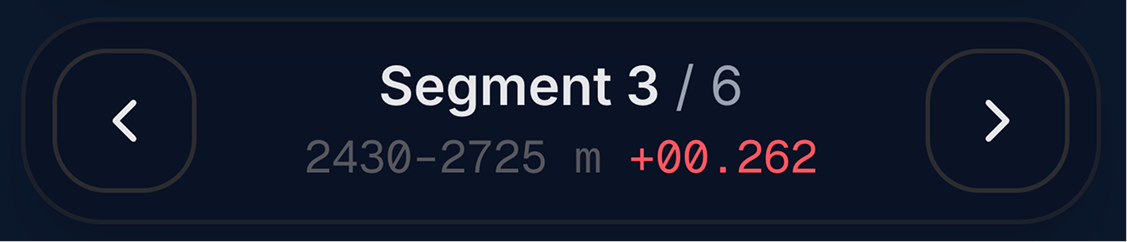
The segment seeker is the compact bar above the driver strip on the bottom-left of the Track Map. Use it to move replay corner-by-corner or straight-by-straight without scrubbing the full timeline.
Where it appears
| Layout | Visibility |
|---|---|
| 2D and 3D | Same control in both view modes |
| Traces open or closed | Stays in the bottom-left stack |
| Desktop | Full seeker with segment number, distance range, and delta |
| Mobile | Available; segment mini map is desktop-only |
Stack order (desktop, reference loaded)
Bottom to top on the left side:
- Replay control bar
- Driver strip
- Segment seeker (← / →)
- Sector comparison card (S1/S2/S3)
When no reference is loaded, the sector card is hidden but the seeker still works for stepping — without time deltas.
Controls
| Part | Action |
|---|---|
| ← | Jump to the previous segment and start replay there |
| → | Jump to the next segment |
| Segment N / total | Which slice of the lap you are in (updates automatically during replay) |
| Distance range | Start and end distance on track in metres (e.g. 0–412 m) |
| Colored time | Delta vs reference for this segment — red slower, green faster (when a ghost is active) |
Chevrons disable at the first and last segment.
How segments are defined
MyLMU splits the current lap into numbered segments:
| Track data | Segments |
|---|---|
| Corner map available | One segment per corner group — label may show turn names (e.g. T1 – Variante del Rettifilo) |
| Otherwise | Equal-distance chunks (~400 m each) around the full lap |
Segments always cover the full lap from start/finish back to start/finish.
Requirements
| Feature | Requirement |
|---|---|
| Stepping segments | Valid current lap with lap-distance data |
| Time deltas | Reference lap loaded (best, picked lap, external, or community) |
Without a ghost, you can still step segments but no red/green delta is shown.
How to read segment delta
| Color | Meaning |
|---|---|
| Green | You gained time vs reference in this segment |
| Red | You lost time vs reference in this segment |
The same delta appears on the segment mini map caption when a reference is loaded.
Suggested workflow
- Load a reference from the driver strip
- Glance at sector comparison — pick the slowest sector
- Replay into that sector, then press → to walk segment by segment
- Stop on the first red segment; switch to 2D for comparison markers
- Open Traces and zoom around that segment’s distance on the Delta chart